The tablet aisle is a minefield — display or non-display, Wacom or XP-Pen, iPad or computer. Before you spend a dollar, here's what actually matters for beginners and a clear path to a setup that'll carry you through your first year.
By Colin B. · Published May 23, 2026 · Last reviewed June 3, 2026
Huion Artist Glove
— Stops palm smudges on your tablet surface — cheap and essential.
Budget total
$80
Typical total
$250
A budget pen tablet plus free Krita software gets you started under $80. Add Clip Studio Paint and a drawing glove and you're at $200–250 for a solid first setup.
We earn commission on qualifying Amazon purchases — see our
affiliate disclosure.
Price tiers and budget totals shown above are editorial estimates;
actual Amazon prices vary.
At a glance
Our top pick in each category
The fastest path through this guide — each best-starter pick by category.
Scroll for the budget and upgrade alternatives.
Don't buy a display tablet as your first tablet. Drawing on a non-display pen tablet (hand on the tablet, eye on the monitor) feels strange for about a week, then becomes second nature. You'll save $100–300 and learn everything you need to know about whether you want the upgrade later.
If you already own an iPad and Apple Pencil, start with Procreate ($12.99 on the App Store) before buying any new hardware. Procreate is genuinely excellent and many working illustrators never need anything else.
The free software is actually good. Krita is open-source and used by professionals. Start there before spending anything — you'll know within two weeks if you're missing something that Clip Studio Paint offers.
Tablet size matters less than people think at the beginner level. A small active area is fine for a large monitor. The wrist travel adjustment takes days, not weeks.
The biggest decision is pen tablet (you draw on a plain surface while watching your monitor) vs. display tablet (you draw directly on a screen). For most beginners, a non-display pen tablet is the better start — cheaper, simpler driver software, and virtually every professional started on one. The hand-eye adjustment takes about a week; you'll forget it was ever strange. Display tablets are a real upgrade, but a better purchase after you've committed to the hobby.
Drawing Tablets — what's the difference?
A few common shapes, each making a different trade.
Non-Display Pen Tablet
Draw on a plain surface; look at your monitor. The standard for most professionals.
Price
$35–230+
Adjustment
~1 week
Screen glare
None
Best for Most beginners, desktop setups, professional workflows
Tradeoff Takes a week to adjust to hand-eye disconnect
The Procreate ecosystem. Self-contained, portable, the most polished drawing app on any platform.
Price
$600–1200+ (iPad + Pencil)
Software
Procreate ($13)
Portability
Excellent
Best for Artists who want to draw anywhere, existing iPad owners
Tradeoff Proprietary ecosystem — you're committed to Apple hardware and Procreate's tool set
Best starter
Wacom
Intuos Small Bluetooth
$78.25 as of Jun 22, 2026
★★★★★Our rating· In Stock
Wacom invented the pen tablet and still makes the most reliable driver software in the industry. The Intuos Small is the standard first-tablet recommendation: plug it in, install the driver, and it works. The active area is smaller than an A5 sheet, which beginners actually prefer — less wrist travel. The battery-free pen charges off the tablet itself.
What we like
Wacom's drivers are the most stable in the category — plug in and it just works
Battery-free pen never needs charging during a session
Small active area means less wrist travel — easier to adapt to at first
What to know
May feel cramped if you upgrade to a large monitor down the road
Costs $20–30 more than comparable XP-Pen alternatives
Half the price of a Wacom Intuos and for most drawing tasks it performs nearly as well. The pen pressure is slightly less nuanced at the extremes, and the driver software can be quirky on macOS — but you won't notice the limitations in your first six months. If you're not sure digital art will stick, this is the smart way to find out.
What we like
Half the price of entry-level Wacom — lowest-risk way to test the hobby
Adequate pen pressure for all beginner and intermediate work
What to know
Driver software can be quirky on macOS — budget extra troubleshooting time
Pen pressure less nuanced at the extremes than Wacom's equivalent
When you're ready to spend real money, this is where most working illustrators land. 8,192 levels of pen pressure, multi-touch gestures for zooming and rotating the canvas, a large active area, and a pen that genuinely feels like drawing on paper. It's the last non-display tablet most people ever need.
What we like
8,192 pressure levels with a pen that genuinely feels like drawing on paper
Multi-touch gestures let you zoom and rotate canvas without the keyboard
Large active area handles big monitors without cramping your stroke range
What to know
At $230+, it's a commitment — wait 3–6 months into the hobby before buying
The first display tablet worth recommending at a beginner-approachable price. Drawing directly on the screen removes the hand-eye disconnect that trips up some beginners, and the laminated screen reduces parallax. If you've tried a pen tablet and found the disconnect genuinely frustrating, this is where to go next.
What we like
Drawing on-screen eliminates the hand-eye disconnect that trips some beginners
Laminated screen cuts parallax between pen tip and cursor
What to know
Requires USB-C with DisplayPort Alt Mode — check your ports before ordering
More expensive than a pen tablet for equivalent beginner-level output
Here's the thing about art software: the free options are genuinely excellent. Krita (free, open-source) is used by working illustrators. Procreate ($12.99 on the App Store) is the iPad gold standard. For Windows and Mac desktop users, Clip Studio Paint is the best first paid purchase — a one-time license, an enormous brush library, and the same software that produces most professional manga and western comics. Skip monthly subscription tools until you know exactly why you need them.
Best starter
Celsys
Clip Studio Paint Pro (Download Code)
$39.99 as of Jun 22, 2026
★★★★★Our rating· In Stock
The one digital art app that professionals actually use which is also beginner-accessible. One-time purchase with no subscription, an enormous downloadable brush library, and industry-standard tools for illustration, comics, and painting. Every major pen tablet works with it. The Pro version is where to start — EX adds animation features you won't need for months.
What we like
One-time purchase — no subscription, no recurring fees, own it forever
Massive free brush and asset library via the CSP Asset Store
Industry standard for illustration and comics — tutorials are everywhere
What to know
Interface takes a few hours to learn if you're coming from Procreate or Photoshop
If photo editing and digital painting in one tool sounds useful, Photoshop Elements is the most accessible entry into Adobe's ecosystem without paying $55/month forever. The guided edit mode walks beginners through specific techniques step-by-step, and the photo retouching tools far outpace Clip Studio Paint. Genuine AI-powered features that beginner creators will actually use.
What we like
Guided edit mode walks beginners through specific techniques step by step
Photo retouching tools far exceed what Clip Studio Paint offers
What to know
3-year license, not perpetual — needs renewal; ongoing cost adds up
Better for photo editors than illustrators learning to draw from scratch
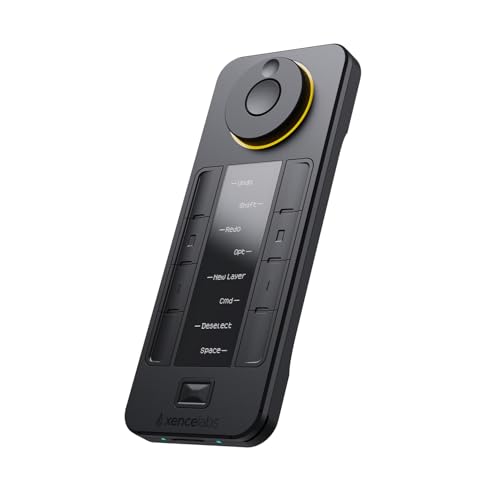
Two cheap things that make a real difference: a drawing glove and a shortcut controller. The glove prevents your palm from dragging on the tablet surface and making accidental marks. The shortcut controller keeps your key commands on a dedicated device so you're not constantly reaching across to your keyboard — digital art relies on shortcuts constantly (undo, brush size, zoom, rotate) and having them under your left hand changes the rhythm of drawing.
Best starter
Huion
Artist Glove
$
★★★★★Our rating
Covers the palm-side of your drawing hand, reducing friction against the tablet surface and preventing accidental palm touches from shifting your canvas. Sounds like a small thing until you draw without one for an hour. Every digital artist owns one. Under $10 and essential.
What we like
Eliminates palm-drag and accidental canvas-shifts the moment you put it on
Under $10 — one of the best dollars-per-impact purchases in digital art
What to know
Sizing is approximate — measure your hand and check the size chart
A palm-sized dial-and-button remote with a small display showing what each button does. Customizable per-application so your Clip Studio shortcuts differ from your Procreate layout. Replaces the constant reach-for-the-keyboard friction that interrupts creative flow. The first real upgrade worth buying after a few months of consistent drawing.
What we like
Built-in screen shows each button's current assignment — no memorization needed
Per-app profiles let you run different shortcuts in each piece of software
What to know
Takes a half-day to configure to your workflow — skip it in month one
Overkill until you know your shortcut habits well enough to customize them
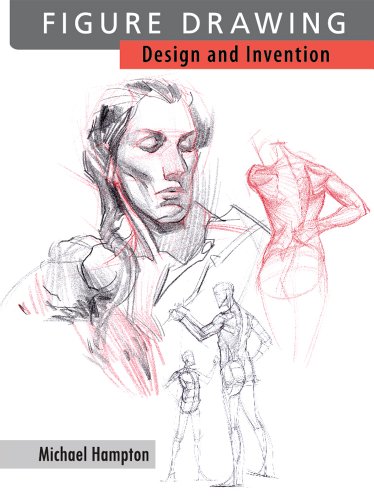
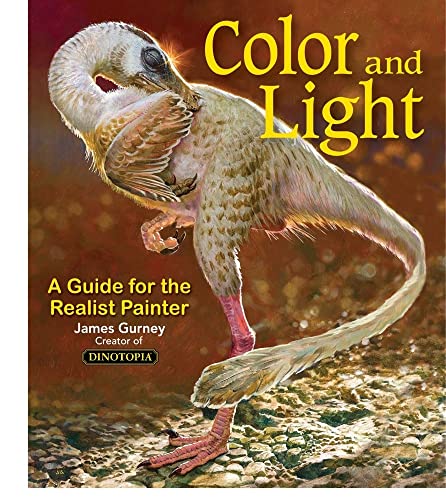
Digital art is really just drawing and painting with different tools. The gear helps; the fundamentals take longer. Two books have changed more digital artists' trajectories than any software upgrade: one on figure drawing, one on light and color. Software doesn't matter if you can't construct a figure or read a light source. Buy these alongside your tablet — not six months in when you're already stuck.
Best starter
Michael Hampton
Figure Drawing: Design and Invention
$35.00 as of Jun 22, 2026
★★★★★Our rating· In Stock
The best book on figure drawing published in the last 20 years. Hampton teaches construction — how to think of the body as interlocking volumes and planes rather than outlines to copy. Work through the exercises slowly and come back every six months. Your drawings will look visibly different each time you return.
What we like
Teaches construction thinking — volumes over outlines — that transfers to all subjects
Works as a progress test: return every six months and your improvement shows
What to know
Exercises are slow and challenging — expect deliberate progress, not quick wins
Gurney explains light, shadow, color temperature, and surface reflectance the way a scientist would — with diagrams, field sketches, and terminology that doesn't require an art degree. The chapter on occlusion shadow alone rearranges how you see the world. Digital artists use this as much as oil painters do.
What we like
Explains color temperature and shadow behavior with diagrams, not just rules
Applies equally to digital and traditional media — a permanent reference
What to know
Dense reference book — best read alongside active painting, not before it
Most beginners spend a week picking software and a month second-guessing their tablet. Here's the shorter path: pick one tool, draw thirty bad things, then start worrying about what to change.
Digital art has a reputation for a steep learning curve, and the reputation is half wrong. The tools take a week to adjust to. The drawing — proportion, perspective, value, color — takes longer, but that’s also true if you pick up a pencil. The tools aren’t the hard part. They just feel like the hard part at the start, because they’re new and specific and involve driver software.
Here’s what the first month actually looks like, and how to avoid the decisions that eat time without improving anything.
Week 1: Just get your hand moving
The most important thing you can do in your first week is not pick the perfect software. It’s draw something. Anything.
If your tablet hasn’t arrived yet, draw with your mouse in Krita (free) or whatever software you chose. The drawing will look terrible. That’s fine — you’re learning to navigate the interface, not making art.
When your tablet arrives, expect two to three days of frustration. Your hand-eye coordination is built for drawing on the same surface you’re looking at. Moving that to a different surface while keeping your eyes on a monitor breaks a mental model that took years to build. It comes back. Most people stop noticing the disconnect by day four or five.
What to do in week one:
Draw basic shapes. Circles, squares, lines. Not pretty ones — just intentional ones. The goal is pen control.
Learn three keyboard shortcuts. Ctrl+Z (undo), [ and ] (brush size), and Space+drag (move canvas). That’s it. Don’t memorize more.
Follow one structured exercise through to completion. Ctrl+Paint’s “Value Study” tutorial is 20 minutes and teaches more than a week of aimless doodling.
Here’s the truth nobody says at the start: digital art is drawing. The software makes it easier to undo, easier to zoom in, easier to adjust colors — but it doesn’t make you better at proportion, or help you understand where shadows fall, or teach you how to construct a face. Those take practice, the same as they always have.
The two most useful things to study in weeks two and three:
Value before color. Value means the lightness or darkness of a tone, entirely separate from its color. Almost every beginner goes straight to color and makes muddy, confusing images. Work in grayscale for the first few weeks. If your drawing reads clearly in black and white, color will make it better. If it doesn’t read in grayscale, color will just add confusion.
Construction over outline. The instinct for most beginners is to draw the outline of a thing and fill it in. The better approach — and the one that every figure drawing teacher has converged on — is to think in volumes first. A head is a sphere. A torso is a box. An arm is a cylinder. Build the form first, then refine the surface. Hampton’s Figure Drawing: Design and Invention teaches this better than anything else; even 30 minutes with it will change how you see.
During these weeks:
Do one timed gesture drawing session. Sites like Line of Action give you 30-second to 2-minute poses. Set a timer, draw 20 poses, stop. This is the fastest way to improve proportion and line confidence simultaneously.
Copy one drawing from an artist you admire. Not to post it — just to understand how they made decisions. Why did they put the shadow there? What did they leave out?
Week 4: Color, and figuring out your actual practice
Color is where digital art finally starts to feel like magic — and where the most common beginner mistakes live.
Two rules that will save you from the worst pitfalls:
Shadows are not darker versions of the same color. A red object in shadow is not dark red — it shifts toward cool, often toward purple or blue, because reflected ambient light (which is usually bluish) fills the shadows. This is counterintuitive at first. The Gurney Color and Light book explains why with diagrams; understanding it conceptually before you try to apply it saves weeks of frustration.
Limit your palette. Beginners often use every color available, which produces paintings that look busy and disorganized. Pick three or four colors and make everything from them. Constraint forces you to see color relationships instead of just picking what “looks like” the subject color.
By the end of week four, you should have:
A weekly drawing habit (even 20 minutes a day is enough to see progress month over month)
At least one piece you finished — not just sketched
A rough sense of whether you’re more drawn to illustration, character work, or environments (this shapes what to study next)
The things you’ll be tempted to do instead of drawing
Every digital artist has been through these:
Brush hunting. There are thousands of free and paid brushes available for every digital art app. Most of them do the same thing as the brushes that came with the software. Your brush collection will not improve your drawings. Draw with the defaults until you have a specific problem that a different brush would solve.
Watching tutorials without drawing. Tutorials are useful. Watching tutorials instead of drawing is procrastination with educational branding. If you watch a tutorial and don’t immediately try the technique, you’ve retained approximately nothing.
Software-switching. Krita, Clip Studio Paint, Procreate, Photoshop, Affinity Photo — they’re all capable of making good work. Switching software every two weeks to find the “right” one is a way of avoiding the actual work, which is drawing. Pick one. Stay with it for a month.
Comparison to professional work. The finished illustrations you see on r/DigitalArt are not representative of what people look like in their first month. They’re representative of people who have been drawing for two to fifteen years. Looking at them for inspiration is useful. Comparing your first-week work to them is not.
What month two looks like
If you’ve put in the hours — an hour a day, most days, for a month — you’ll notice something: the gap between what you can see and what you can draw is smaller than it was. You’ll still see a lot of problems in your own work. That’s progress; beginners don’t see the problems. You’ll have opinions about brushes, about software, about what you want to get better at next.
The practice compounds. The first month is the hardest, not because the tools are complicated, but because building any creative habit takes will before it takes skill.
Save your money
What you don't need yet
Beginners get pressured to buy a lot of stuff that doesn't help them play
better. Here's what we'd skip on day one.
A display tablet on day one — The pen tablet hand-eye adjustment takes a week, not a month. Plenty of working professionals spend their entire career on non-display tablets. Save the $100–300 upgrade for after you've committed.
A Wacom Cintiq 24 or 27 — The large professional display tablets are genuinely beautiful tools. They're also $1,500+. Your technique, not your hardware, is the bottleneck in your first year.
Adobe Creative Cloud — At $55/month, Photoshop and Illustrator are a recurring cost for tools you may not need yet. Clip Studio Paint and Krita can export formats Photoshop understands. Upgrade only when a specific workflow gap becomes obvious.
Paid brush packs — Clip Studio Paint ships with enough brushes to do serious work, and thousands more are free on the CSP Asset Store. Every paid brush pack is selling marginal improvements on what you already have.
A streaming or recording setup — Drawing process content is a creative habit worth building later — not a prerequisite for learning. Get the fundamentals first.
First week
Your first seven days
A short, real plan to get from gear-on-doorstep to actually playing.
Download Krita (free) and draw something — anything — with your mouse or trackpad. This tells you whether you hate the interface before any hardware arrives. · Action
Watch Ctrl+Paint's 'Digital Painting 101' series — free, short, and structured. Don't just watch; pause and follow along in your software. · Learn
Ctrl+Paint library · Free digital painting fundamentals, organized by skill level
Draw three self-portraits from a mirror or photo reference. Bad ones count. The point is getting comfortable with the pen before worrying about anything else. · Action
Find one artist whose finished work you want to eventually make. Save 10 of their images. Knowing where you're headed matters more than knowing every shortcut. · Action
FAQ
Common questions
Should I start on an iPad or a drawing tablet?
iPad with Procreate is more intuitive out of the box and great for portability. A pen tablet connected to a computer gives you more software options and a larger screen for detailed work. If you already own an iPad, add the Apple Pencil and try Procreate first — it's a $13 commitment. Starting from scratch on a desktop? Go with the Wacom Intuos Small.
Is Wacom still worth it over XP-Pen or Huion?
For beginners, yes — Wacom's drivers are more stable and their customer support is better. The drawing feel difference is smaller than the price premium suggests, but the peace-of-mind is real. At the upgrade tier ($150+), XP-Pen and Huion close the gap significantly and are worth trying.
Which software is best for beginners?
Krita is free and excellent for painting. Clip Studio Paint Pro is $25–50 one-time and handles illustration, comics, and painting better than anything in its price range. Procreate is worth it if you're on iPad. Stay away from subscriptions until you know exactly why you need what they offer.
Do I need a powerful computer for digital art?
Less than you'd expect. A modern mid-range laptop handles Clip Studio Paint and Krita without issue. You'll feel limitations only with very large canvases (6000px+) or frame-by-frame animation. The tablet and software matter more than CPU speed at the beginner level.
How long does it take to get good at digital art?
You can make recognizable, satisfying drawings within a week. Looking like you know what you're doing usually takes three to six months of consistent practice — an hour a day, most days. Proportion, value, and color take years to master, which is also true of traditional drawing.
What's the difference between a pen tablet and a display tablet?
A pen tablet is a plain surface you draw on while looking at your monitor — hand here, eyes elsewhere. A display tablet has a screen built in so you draw directly where you're looking. Most beginners do fine on a pen tablet after about a week. Display tablets cost more but have a shorter intuitive start.
Proko (YouTube) — The best free figure drawing instruction on the internet. Stan Prokopenko's anatomy series is clear and genuinely useful. Start with 'Figure Drawing Fundamentals.' Free.
Ctrl+Paint — Matt Kohr's free digital painting tutorial library, organized by skill level. Start with 'Digital Painting 101' and work through in order. One of the best structured beginner resources available.
Draw a Box — A rigorous free course in fundamental drawing concepts — perspective, form, and spatial reasoning. Hard, slow, and effective at building the spatial thinking that transfers to everything else.
Krita (free software) — Professional open-source painting software for Windows, Mac, and Linux. The best free starting point for digital painting on a desktop.
Clip Studio Paint — Industry standard for illustration and comics. One-time license around $25–50. Enormous downloadable brush and asset library via the CSP Asset Store.
r/learnart — The most helpful subreddit for beginner artists. Post your work for genuine critique. Better signal-to-noise ratio than most art forums.
r/DigitalArt — For inspiration and seeing what's possible. Don't compare your first-week work to others' finished illustrations — come here to see where the craft leads.
As an Amazon Associate, JustBeginning earns from qualifying purchases.
We may also earn commission from other affiliate programs linked on this
page. Editorial recommendations are independent; we don't choose
products based on commission rates.
Product prices and availability are accurate as of the date and time
indicated and are subject to change. Any price and availability
information shown on Amazon at the time of purchase will apply.


 Best starter